

Bank guides
Downloading a statement
Where internet banking hides the export, and guides for popular banks.
Every bank offers an export; it is only hidden in a different place each time.
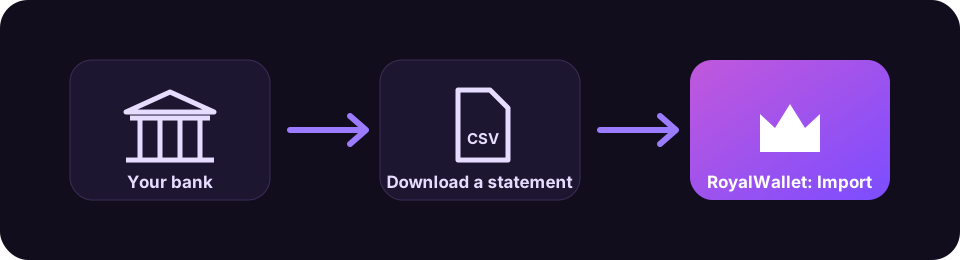
The general way
- Sign in to internet banking on a computer. The website usually offers more export options than the mobile app.
- Look for “Statements”, “Transactions”, “History” or “Export”.
- Choose the period. A month at least; three months or a year is even better for insights.
- Choose CSV. If there is no CSV, a PDF works too.
- Import the file in RoyalWallet.
Guides for popular banks
- Revolut
- Wise
- N26
- Capital One
- Chase, Bank of America, Wells Fargo, Citi and others
- [[european-banks|Large banks in Czechia, Poland, Germany, the Netherlands, Belgium, the UK, France, Spain and Italy]]
The Help page in the app has the same paths for more than 40 banks, with a search box.
Bank and product names are trademarks of their owners and are used here only to show where to find your statement. RoyalWallet is not affiliated with, endorsed by or a partner of these banks. Menus change from time to time; if a step looks different, look for “Statements”, “Transactions” or “Export”.