

Bank guides
Capital One
Download Capital One credit card or 360 account transactions as CSV.
Credit card (website)
- Sign in at capitalone.com and select your card.
- Open Statements & documents and choose Download transactions.
- Choose CSV, set the date range and click Export.
Pending charges appear in the export once they post.
360 Checking or Savings (website)
- Open the account to see its transaction history.
- Choose Download transactions (or Export) above the list.
- Choose CSV and the date range, then download.
In RoyalWallet
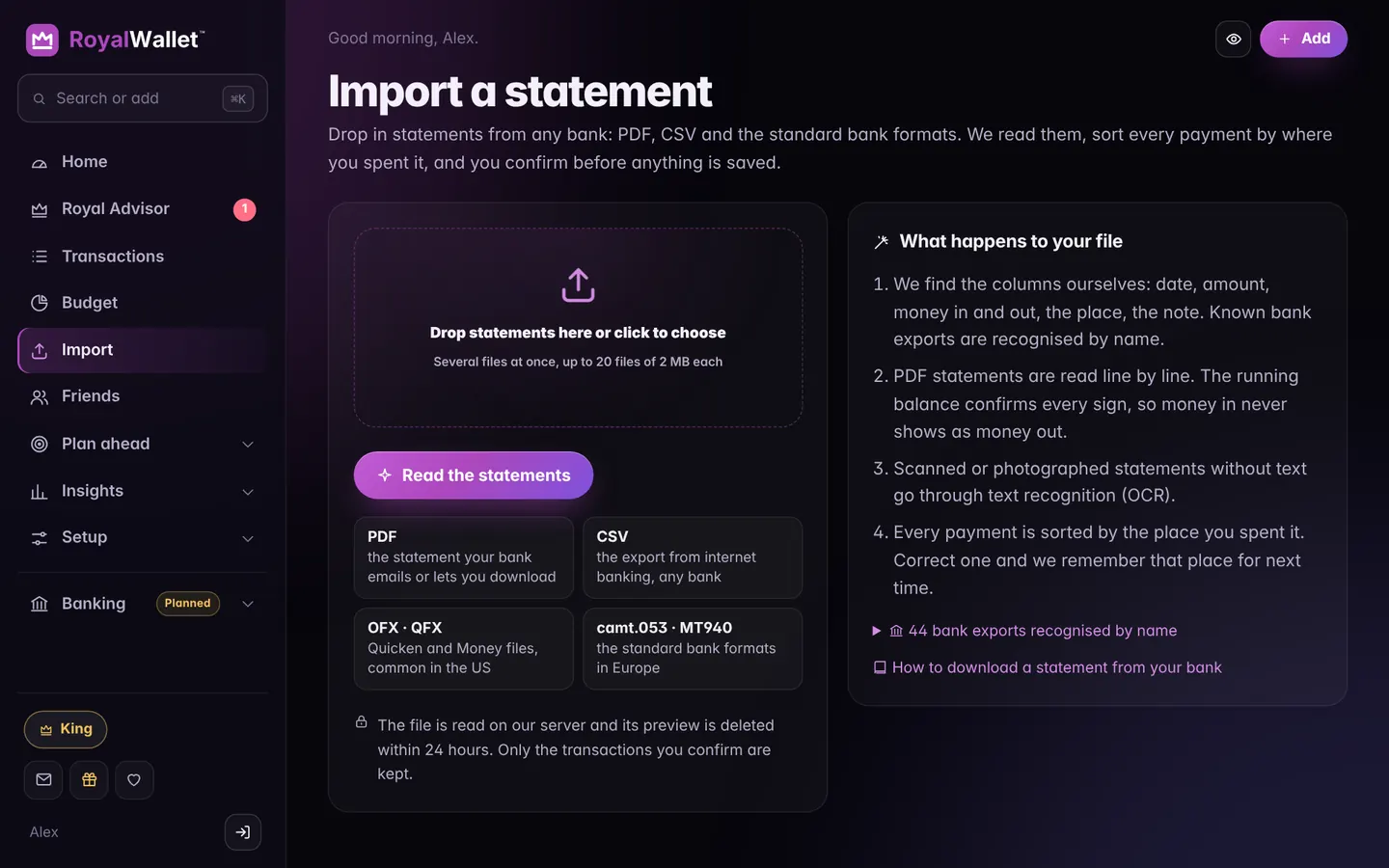
Open Import and drop the CSV in. QFX and OFX files work too.
Bank and product names are trademarks of their owners and are used here only to show where to find your statement. RoyalWallet is not affiliated with, endorsed by or a partner of these banks. Menus change from time to time; if a step looks different, look for “Statements”, “Transactions” or “Export”.